Help & Documentation

Tutorial
Compatibility
CAD Translator is compatible with the following AutoCAD and BricsCAD versions:
AutoCAD
2023, 2024, 2025, 2026, 2027
BricsCAD
2023, 2024, 2025, 2026
Installation
After purchasing your license for CAD Translator, you can download the plugin through your account.
Alternatively, you can install the plugin through the Autodesk Store if you purchased it there.
After starting AutoCAD or BricsCAD, a new “CAD Translator” tab will be added to your ribbon.
Synchronization
The “Sync” function allows you to synchronize the current state of a database that is not stored locally on your computer.
In doing so, any existing local copies of the database may be overwritten.
Administration
Program language: Changes the language of the program interface. This does not affect the translations the software performs in your drawings.
Translation database: Select the storage location of the translation database you want to use. The path can be local on your computer or on a network drive.
The “+” button allows you to create a new database in a location of your choice.
DeepL API key: To use DeepL for translation, you must enter your DeepL API key here. The question mark takes you to the relevant DeepL instructions.
Excel export: Exports your current database to an Excel file containing languages and translations.
Excel import: Imports an externally created Excel file or a previously exported and edited Excel file into the translation database. This process overwrites all current data in your translation database.
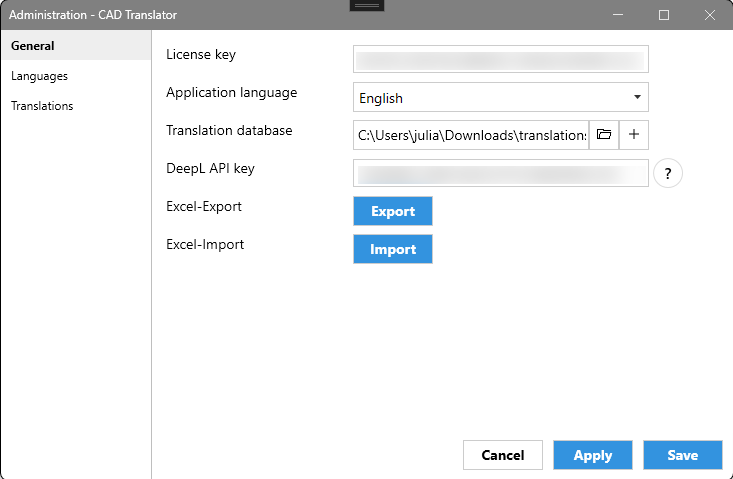
Administration
Languages
In language management, you can define which languages you want to use for your translations. The languages are freely configurable for maximum flexibility.
Add
Double-click the first empty row in the dialog.
Enter the language you want to create.
Confirm the entry using the plus icon to the left of the row.
Edit
Double-click the relevant row.
Adjust the name.
Delete
Click the delete icon to the left of the relevant language.
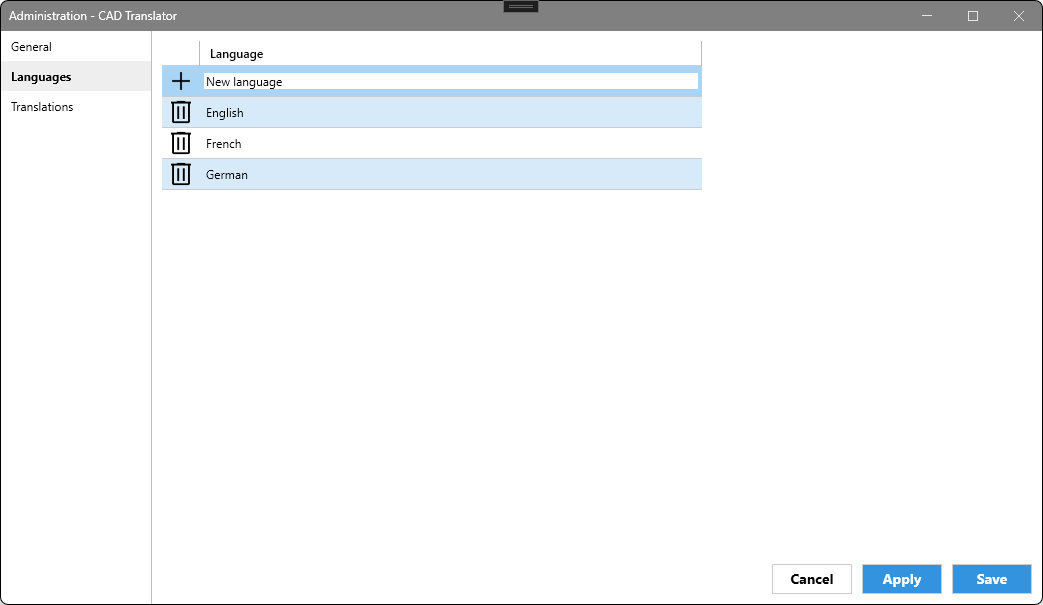
Language management
Translations
In translation management, you can define the translations that CAD Translator uses to translate your drawings.
Add
Double-click the relevant column in the first empty row of the dialog.
Enter the translation you want to create.
Confirm the entry using the plus icon to the left of the row.
Edit
Double-click the relevant row and column.
Adjust the translation.
Delete
Click the delete icon to the left of the relevant translation.
DeepL: DeepL functionality is only available if you have stored a DeepL API key under General in the administration section.
Translate with DeepL: The “Translate with DeepL” button shows or hides the settings for DeepL translations for better clarity.
Source language: Selects the language or column of your translations that should be used as the basis for automatic translation.
Target language: Selects the language or column of your translations into which the new translations should be entered.
DeepL language: Select the equivalent of your target language here. Because languages can be defined freely, there can be no automatic assignment here.
Overwrite existing translations: If enabled, the function overwrites all texts in the target language with the DeepL translations. If disabled, only translations whose fields are currently empty are filled in.
Translate: The “Translate” button starts the translation process.
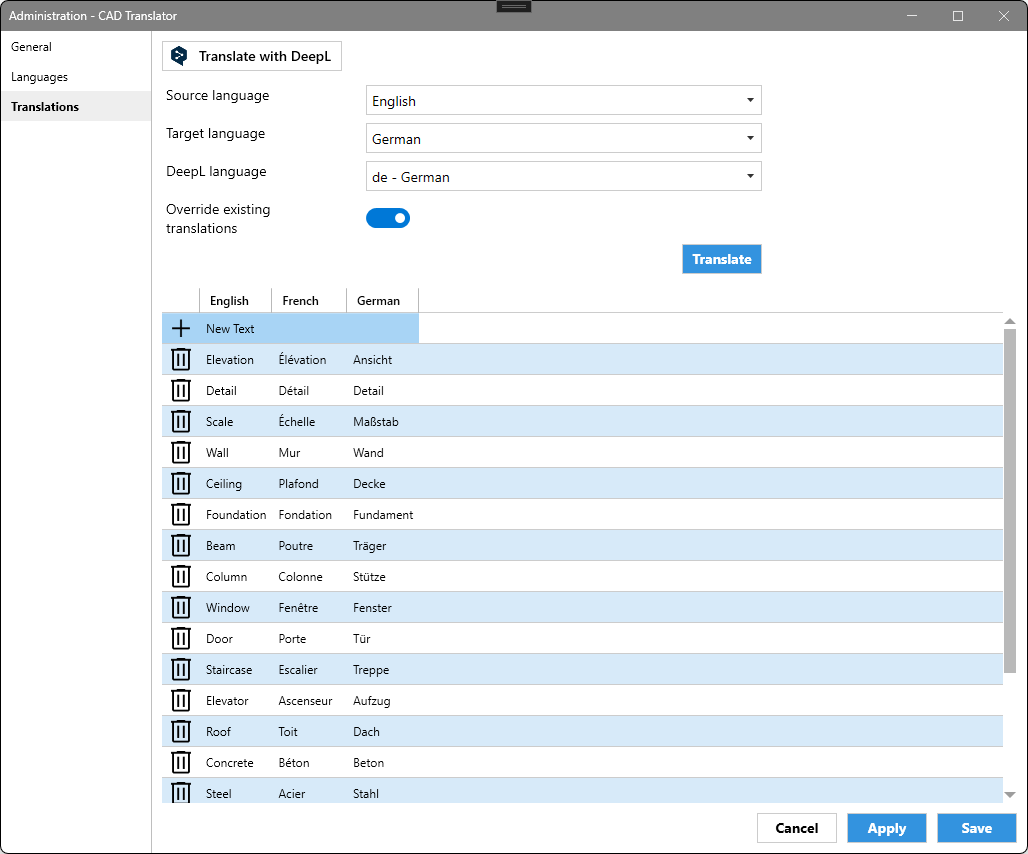
Translation management
Excel Import/Export
Excel export and import use a simple format so that you can manage your translations as easily as possible.
The first row contains the names of all languages from language management.
All following rows each contain one text together with its translations.
The Excel file can be edited freely. Additional languages can be added through new columns or removed again. Translations can be added or removed through additional rows.
During import, the data currently stored in the translation database is completely overwritten and replaced with the data from the Excel file. Before the import, CAD Translator displays a warning that points this out again.
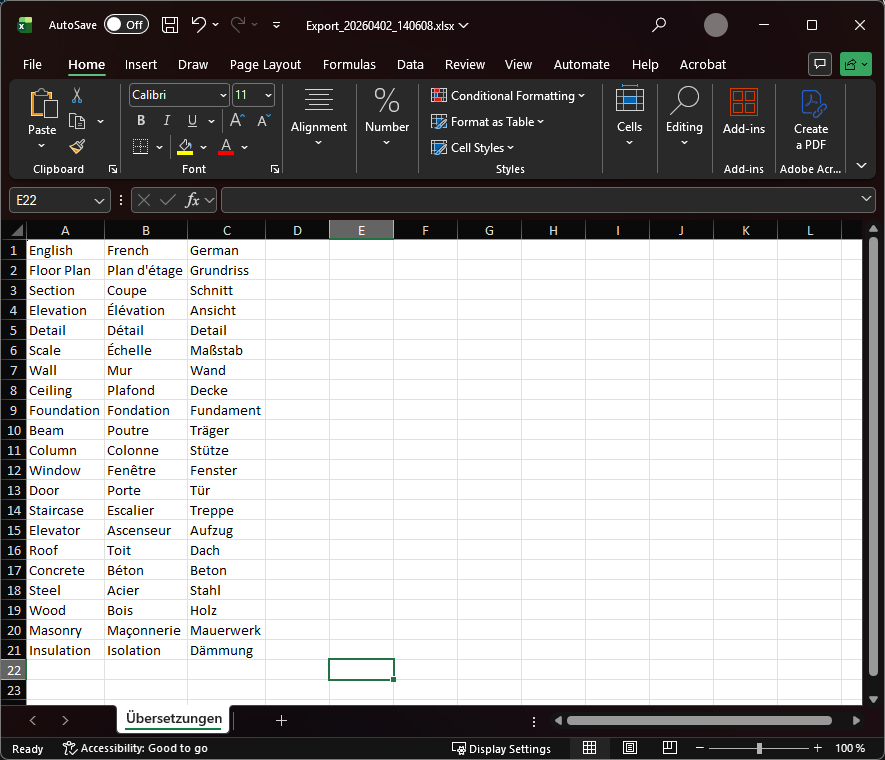
Example of the Excel format
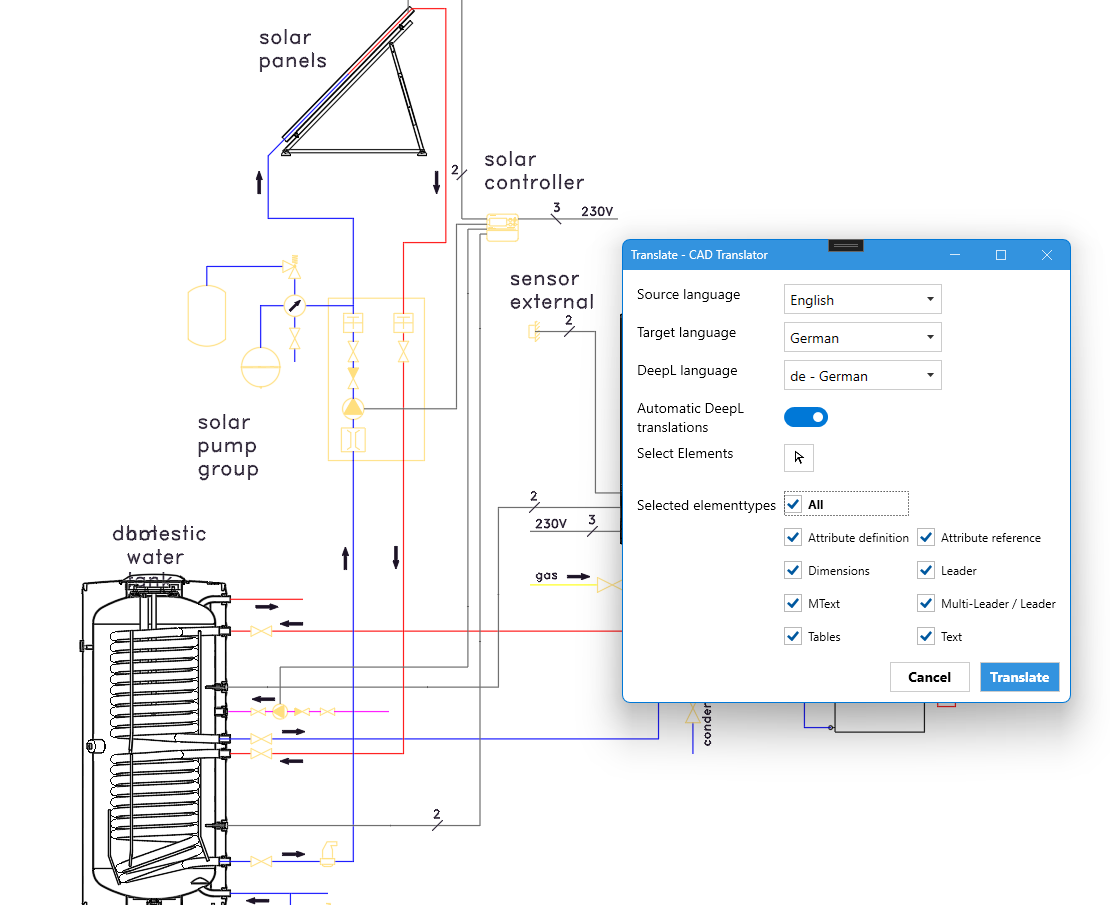
Translate
You can find the “Translate” function in the ribbon. Before starting the translation process, you can configure it there.
Source language: Select the language currently used in your drawing.
Target language: Select the language your drawing should use after translation.
DeepL language: As in translation management, select the equivalent of your target language here if you want to use DeepL for translation.
Automatic DeepL translation: If enabled, CAD Translator will try to automatically supplement texts that are not defined in the database using DeepL. Your translation database always takes priority over DeepL translations.
Select elements: By selecting items in your drawing, define which elements you want to translate. If no selection is made, the entire drawing is translated.
Selected element types: By default, CAD Translator translates the text of all elements in your drawing. You can use the checkboxes to filter which elements should be translated or ignored.
Translate